自分で設定が済む、cron ジョブと定期実行スクリプトの監視
昨夜のレポートが動いていなかったことを、上司に言われて知るのはもう終わりにしましょう。Claude や ChatGPT に「定期実行スクリプトを監視して」と伝えるだけ。ジョブを設定し、各スクリプトに数行を追加します。ジョブが失敗したとき、遅れたとき、実行されなかったとき、行数がおかしいときに TaskBeacon がアラートを送り、何が起きたかはアシスタントに聞けます。
無料で開始 · 現在は全機能を開放中 · クレジットカード不要
Claude や ChatGPT からジョブを設定・確認
02:14。夜間のインポートが失敗。上司に聞かれるまで誰も気づきません。
- 02:14、夜間の売上インポートがデータベースのタイムアウトで失敗し、誰にも知らされません。
- Claude で「TaskBeacon の始め方を手伝って。」と書き、スクリプトとそのスケジュールを伝えます。Claude がジョブを作成し、スクリプトの開始と終了に入れる行を示します。
- または Claude Code で「スケジュールされたタスクをスキャンして、監視すべきものを提案して。」と書きます。タスク スケジューラを読み取り、「はい」と答えると TaskBeacon に 3 つのジョブを設定し、3 つのスクリプトに行を追加します。
- ジョブは自動で TaskBeacon のジョブ一覧に表示され、初回の実行後に OK になります。
- スクリプトが失敗すると、エラーと出力の最後の行が入ったメールがすぐに届き、正常に戻ったときにもう 1 通届きます。
- 翌朝、ChatGPT に「昨夜失敗したのは?」と聞くと、TaskBeacon の情報をもとに答えます。
- Claude に CRM インポートを 06:00 に移し、バックアップを一時停止するよう頼むと、まず確認してから両方を変更します。
- 同じことはアプリで手作業でも、アシスタントに書いても行えます。その後は自動で動きます。
定期実行ジョブの監視のしくみ
- 1AI アシスタントを接続
Claude または ChatGPT に TaskBeacon を追加してサインインします。1 分で完了。
- 2スクリプトの監視を頼む
スケジュール付きのジョブを作成し、各スクリプトに数行を追加します。自分で設定したい場合は、「Code」タブ(コード)が追加する行を用意します。
- 3アラートを受け取り、質問する
ジョブが失敗したとき、実行されなかったとき、遅れたとき、異常データを送ったときに、メール、Slack、Teams などで通知します。「昨夜失敗したのは?」といつでも聞けます。
昨夜失敗したジョブを聞き、頼むだけでジョブを変更
TaskBeacon を接続した Claude や ChatGPT での会話の例です。アシスタントは何かを作成・変更する前に必ず確認します。
このサーバーの定期スクリプトをすべて監視して。
cron ジョブが 6 つ見つかりました。リストを確認していただいた後、同じスケジュールで TaskBeacon のジョブを 6 つ作成し、各スクリプトに行を追加しました。nightly_backup.sh はすでに報告済みです:OK。アラートはすぐにメールで届きます。
昨夜何が失敗したか、そしてその理由は?
CRM import が 02:14 に KeyError: 'amount' で失敗しました。エクスポートの列名が 'total_amount' に変わっています。crm_import.py の 41 行目を変更してください。ほかの 5 つのジョブは時間どおりに実行されました。
今日の売上の読み込みは、なぜ 12 行しかなかったの?
いつもは約 48,000 行を読み込みます。今日の実行は 06:30 に始まりましたが、元ファイルが届いたのは 06:58 でした。ジョブを 07:15 に移すか、スクリプトの中でファイルを待ってください。
Weekly forecast を毎週月曜 07:30 に移して、古い FTP export を一時停止してください。
完了しました:Weekly forecast は毎週月曜 07:30 の実行を想定するようになりました。FTP export は一時停止したので、再開するまでアラートは送られません。
Claude、ChatGPT のほか、MCP サーバーに接続できるアプリで使えます。読み取りはすべてのプランで、チャットからのジョブ設定は Pro と Team で利用できます。接続方法
Python、R、Stata、PowerShell のスクリプトに 3 行
TaskBeacon が実際に生成するコードで、ジョブ専用のアドレスが入っています。アシスタントが追加しても、自分で貼り付けても構いません。
# --- TaskBeacon: top of the script (standard library only) ---
import json, traceback, urllib.request

TB = "https://taskbeacon.io/ping/your-job-id"

def tb_ping(path="", data=None):
    body = json.dumps(data).encode() if data else None
    req = urllib.request.Request(TB + path, data=body, headers={"Content-Type": "application/json"})
    try:
        urllib.request.urlopen(req, timeout=10)
    except Exception as e:
        print("TaskBeacon ping failed:", e)

tb_ping("/start")

try:
    # --- your code here ---
    df = [1, 2, 3]  # example data: replace with your own (e.g. pandas.read_csv)
except Exception as e:
    # the error and the last 20 lines of the traceback go with the failure
    tb_ping("/fail", {"error": f"{type(e).__name__}: {e}"[:200],
                       "log": "\n".join(traceback.format_exc().splitlines()[-20:])[-4000:]})
    raise

# --- TaskBeacon: end of the script ---
tb_ping("", {"rows": len(df)})# Save as C:\jobs\taskbeacon-run.ps1
# Task Scheduler > Action: Start a program
# Program: powershell.exe
# Arguments: -NoProfile -ExecutionPolicy Bypass -File C:\jobs\taskbeacon-run.ps1 "C:\path\to\program.exe" "arg1" "arg2"
# Runs the program, then reports success or failure from its exit code.
# A .ps1 script as the program is run with powershell.exe -NoProfile -ExecutionPolicy Bypass -File script.ps1
# (an execution policy set by Group Policy still wins over Bypass).
$tb = "https://taskbeacon.io/ping/your-job-id"
$program, $programArgs = $args
# a .ps1 file is not a program Windows can start on its own ("not a valid Win32 application")
if ($program -match '\.ps1$') {
$programArgs = @('-NoProfile', '-ExecutionPolicy', 'Bypass', '-File', $program) + @($programArgs | Where-Object { $null -ne $_ })
$program = 'powershell.exe'
}
function Send-TaskBeacon($path, $text) {
$send = @{ UseBasicParsing = $true; TimeoutSec = 10; Uri = ($tb + $path) }
if ($text) { $send.Method = 'Post'; $send.ContentType = 'text/plain; charset=utf-8'; $send.Body = [Text.Encoding]::UTF8.GetBytes($text) }
try { Invoke-WebRequest @send | Out-Null }
catch { Write-Host "TaskBeacon ping failed: $_" }
}
Send-TaskBeacon "/start"
# keep arguments that contain spaces together
$argLine = ($programArgs | ForEach-Object { if ($_ -eq '' -or $_ -match '[\s"]') { '"' + ($_ -replace '"', '\"') + '"' } else { $_ } }) -join ' '
# Windows PowerShell 5.1 refuses an empty -ArgumentList: pass it only when there are arguments
$run = @{ FilePath = $program; Wait = $true; PassThru = $true; NoNewWindow = $true; ErrorAction = 'Stop' }
if ($argLine) { $run.ArgumentList = $argLine }
# the program's output goes to temporary files: shown below, and its last 20 lines go with a failure
$out = [IO.Path]::GetTempFileName(); $err = [IO.Path]::GetTempFileName()
$run.RedirectStandardOutput = $out; $run.RedirectStandardError = $err
$code = 1
$note = ''
try {
$p = Start-Process @run
if ($null -ne $p.ExitCode) { $code = $p.ExitCode }
} catch { $note = "Could not start ${program}: $_"; Write-Host $note }
Get-Content -LiteralPath $out, $err -ErrorAction SilentlyContinue
$tail = ''
if ($code -ne 0) {
$lines = @(Get-Content -LiteralPath $out, $err -Tail 20 -ErrorAction SilentlyContinue) + @($note)
$tail = ($lines | Where-Object { $_ } | ForEach-Object { if ($_.Length -gt 300) { $_.Substring(0, 300) } else { $_ } }) -join "`n"
}
# the exit code goes at the end of the address: /0 = OK, any other number = failed
Send-TaskBeacon "/$code" $tail
Remove-Item -LiteralPath $out, $err -ErrorAction SilentlyContinue
exit $code # not 0 when it failed, so Task Scheduler shows the failure too# --- TaskBeacon: top of the script (base R only) ---
tb <- "https://taskbeacon.io/ping/your-job-id"
tb_log <- "" # optional: this script's log file (e.g. Rscript job.R > job.log 2>&1); its last 20 lines go with a failure
tb_ping <- function(path = "") {
old <- options(timeout = 10) # wait at most 10 seconds (R's default is 60)
on.exit(options(old))
invisible(try(suppressWarnings(readLines(paste0(tb, path), warn = FALSE)), silent = TRUE))
}
tb_num <- function(x) utils::URLencode(format(x, scientific = FALSE, digits = 15, trim = TRUE), reserved = TRUE)
tb_tail <- function() {
if (!nzchar(tb_log) || !file.exists(tb_log)) return("")
text <- paste(utils::tail(readLines(tb_log, warn = FALSE), 20), collapse = "\n")
if (nchar(text) > 700) text <- sub("^[^\n]*\n", "", substr(text, nchar(text) - 700, nchar(text)))
paste0("&log=", utils::URLencode(text, reserved = TRUE))
}
tb_ping("/start")
tryCatch({
# --- your code here ---
df <- data.frame(x = 1:3) # example data: replace with your own
}, error = function(e) {
tb_ping(paste0("/fail?error=", utils::URLencode(substr(conditionMessage(e), 1, 200), reserved = TRUE), tb_tail()))
stop(e)
})
# --- TaskBeacon: end of the script ---
tb_ping(paste0("?", "rows=", tb_num(nrow(df))))* --- TaskBeacon: top of the do-file ---
local tb "https://taskbeacon.io/ping/your-job-id"
* curl.exe is built into Windows 10 and 11; macOS and Linux have curl
local tb_curl = cond(c(os) == "Windows", "curl.exe", "curl")
local tb_log "" // optional: this do-file's log (batch mode: stata -b do job.do, or StataMP-64.exe /e do job.do on Windows, writes job.log in the current folder); its last 20 lines go with a failure
shell `tb_curl' -fsS -m 10 "`tb'/start"
capture noisily {
* --- your code here (the example data: replace with your own) ---
sysuse auto, clear
}
quietly {
local tb_rc = _rc
if `tb_rc' {
* the last 20 lines of the log (if tb_log is set) go with the failure
local tb_data ""
if `"`tb_log'"' != "" {
tempfile tb_tail
tempname tb_in tb_out
capture {
file open `tb_in' using `"`tb_log'"', read text
local tb_n 0
file read `tb_in' tb_line
while r(eof) == 0 {
local tb_n = `tb_n' + 1
local tb_k = mod(`tb_n', 20)
local tb_l`tb_k' = substr(`"`macval(tb_line)'"', 1, 300)
file read `tb_in' tb_line
}
file close `tb_in'
file open `tb_out' using `"`tb_tail'"', write text replace
forvalues tb_i = `=max(1, `tb_n' - 19)'/`tb_n' {
local tb_k = mod(`tb_i', 20)
file write `tb_out' `"`macval(tb_l`tb_k')'"' _n
}
file close `tb_out'
local tb_data `"--data-binary "@`tb_tail'" -H "Content-Type: text/plain""'
}
capture file close `tb_in'
capture file close `tb_out'
}
shell `tb_curl' -fsS -m 10 `tb_data' "`tb'/fail?rc=`tb_rc'"
exit `tb_rc'
}
}
* --- TaskBeacon: end of the do-file ---
local tb_rows = _N
shell `tb_curl' -fsS -m 10 "`tb'?rows=`tb_rows'"@echo off
REM Save as C:\jobs\taskbeacon-run.bat
REM Task Scheduler > Action: Start a program
REM Program: C:\jobs\taskbeacon-run.bat
REM Runs your job, then reports success or failure from its exit code.
set "TB=https://taskbeacon.io/ping/your-job-id"
curl.exe -fsS -m 10 "%TB%/start" >nul
REM --- your job here (a program, a script, another .bat with call): replace the path ---
REM its output goes to a temporary file: shown below, and its last 20 lines go with a failure
set "TB_LOG=%TEMP%\taskbeacon-%RANDOM%.log"
call "C:\path\to\your-job.bat" > "%TB_LOG%" 2>&1
set TB_RC=%ERRORLEVEL%
type "%TB_LOG%"
type nul > "%TB_LOG%.tail"
if not "%TB_RC%"=="0" powershell.exe -NoProfile -Command "Get-Content -LiteralPath $env:TB_LOG -Tail 20 | ForEach-Object { if ($_.Length -gt 300) { $_.Substring(0, 300) } else { $_ } }" > "%TB_LOG%.tail" 2>nul
REM the exit code goes at the end of the address: /0 = OK, any other number = failed
curl.exe -fsS -m 10 --data-binary "@%TB_LOG%.tail" -H "Content-Type: text/plain" "%TB%/%TB_RC%" >nul
del "%TB_LOG%" "%TB_LOG%.tail" 2>nul
exit /b %TB_RC%# crontab -e (this example runs every day at 06:00)
0 6 * * * curl -fsS -m 10 https://taskbeacon.io/ping/your-job-id/start >/dev/null; /path/to/your-job.sh; curl -fsS -m 10 "https://taskbeacon.io/ping/your-job-id/$?" >/dev/nullジョブのダッシュボード、アラート、実行履歴
TaskBeacon の実際の画面です(ジョブは架空のものです)。
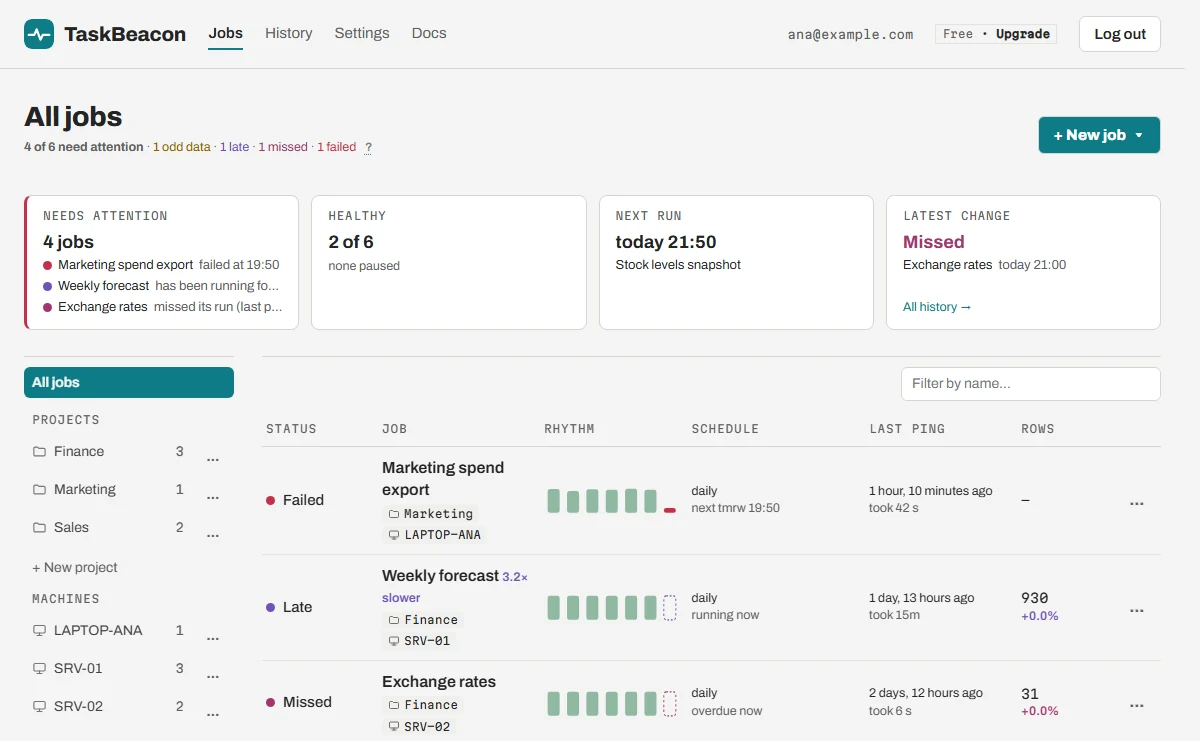
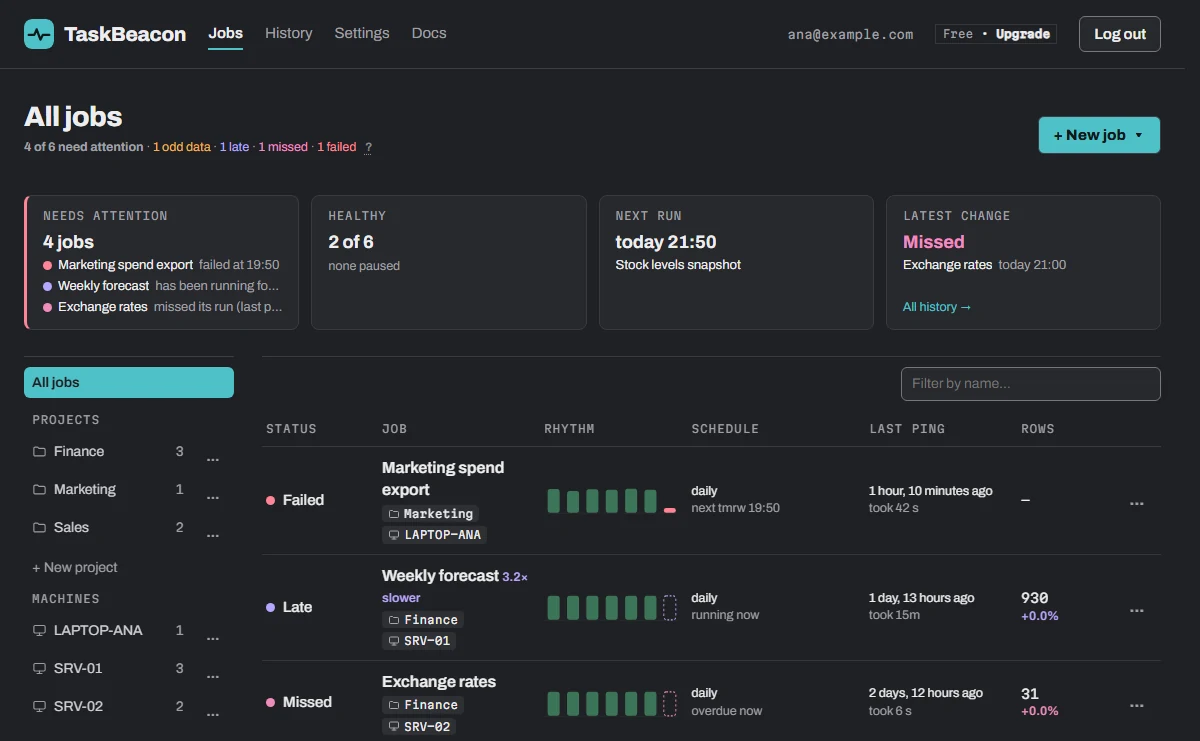
すべてのジョブを 1 画面で
- 問題のあるジョブが先頭に:失敗、遅延、未実行、異常データ。
- 小さなバーで最近の各実行を表示。
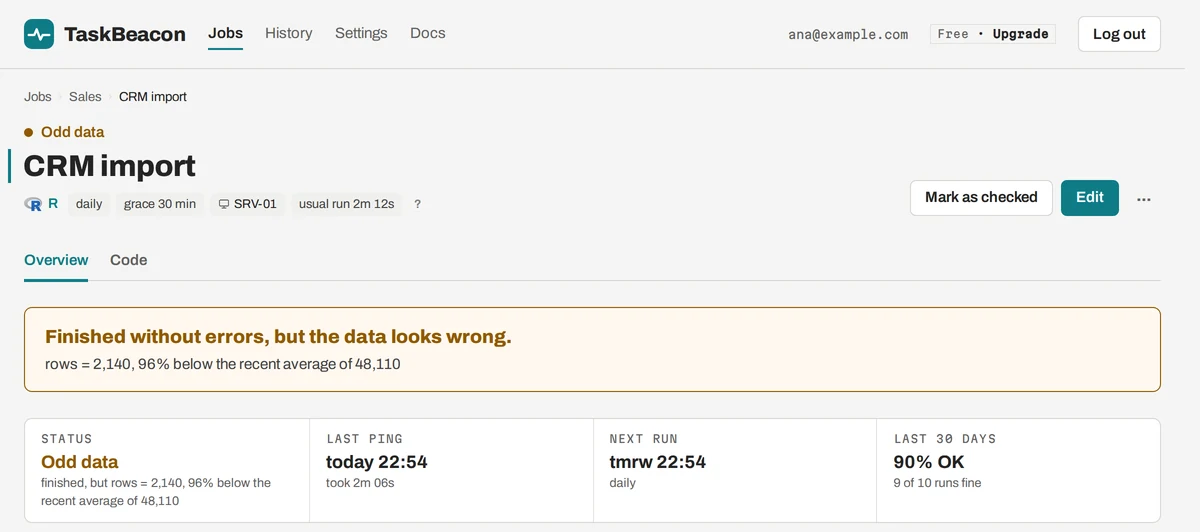
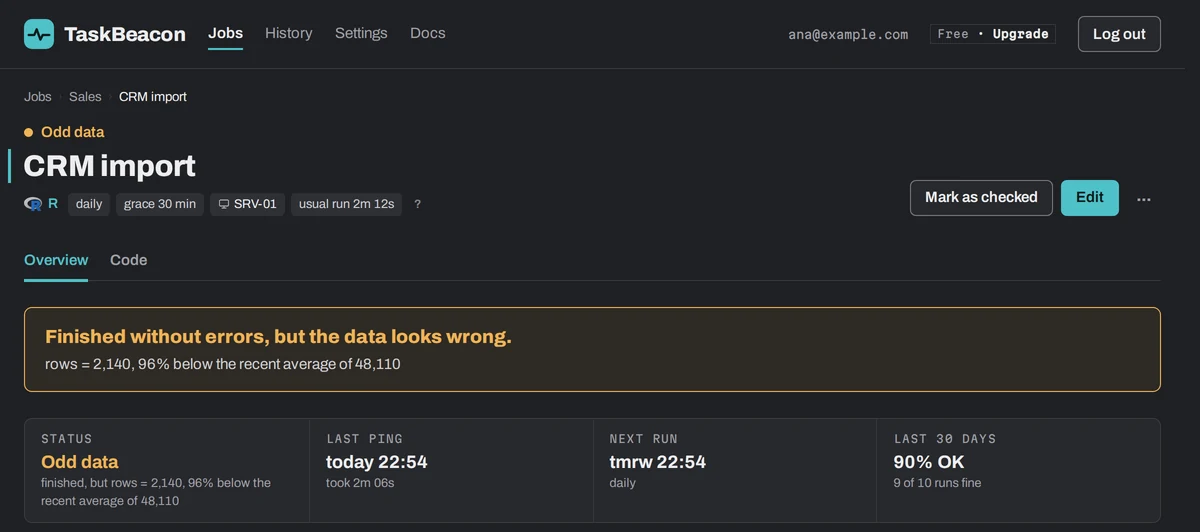
各ジョブが状況を自ら説明
- 何が問題だったかを、わかりやすい 1 文で。
- 実行ごとの行数を、いつもの水準と比較。
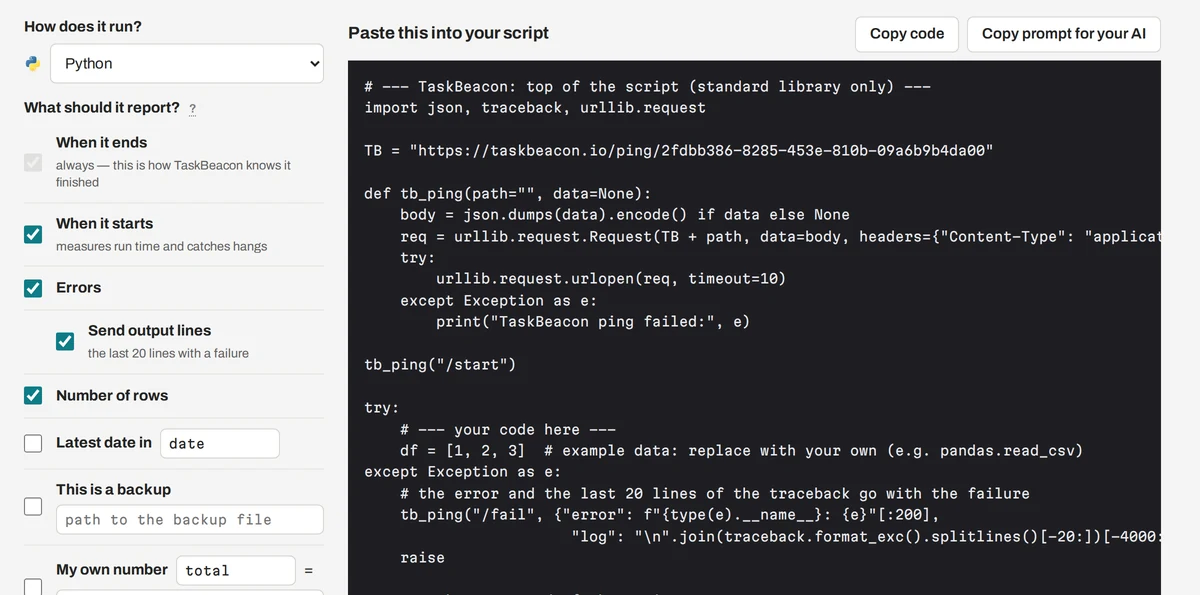
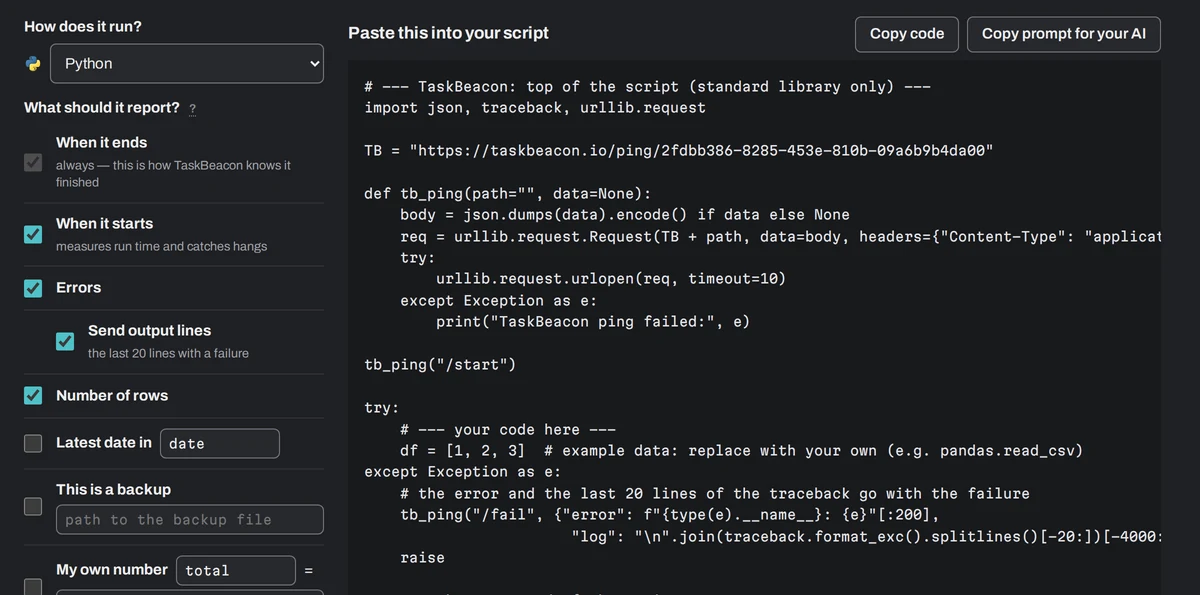
エージェントのインストールではなく、コードを貼り付けるだけ
- 言語を選び、報告する項目にチェック。
- 開始、エラー、行数、最新の日付、バックアップのサイズ。
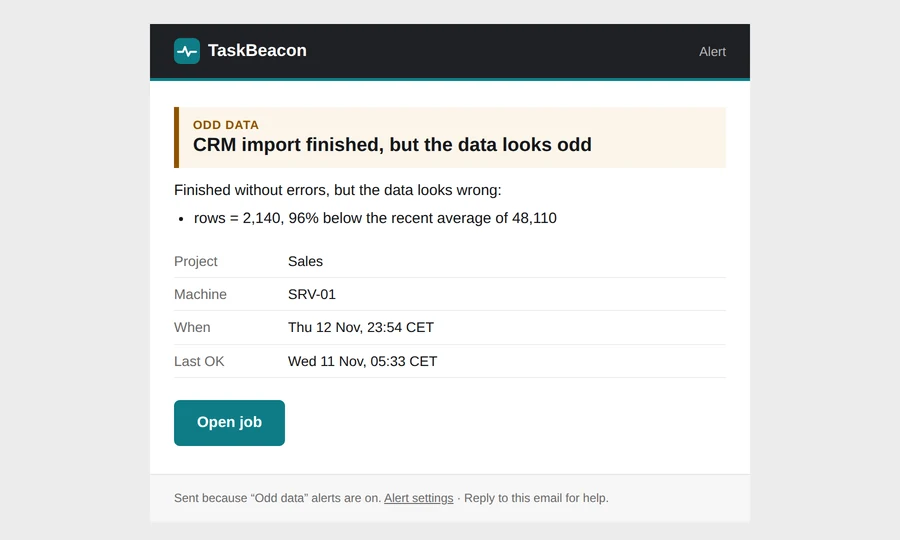
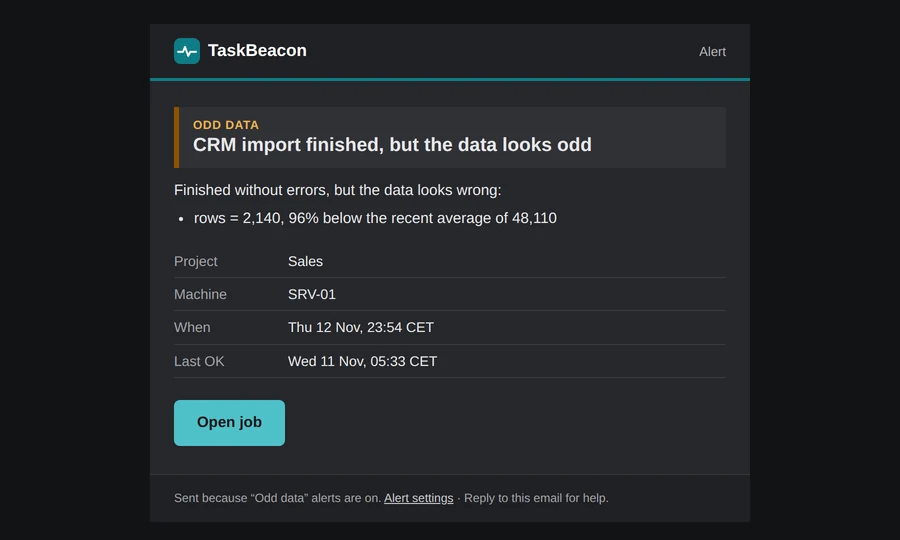
次に何をすべきかがわかるアラート
- 原因、マシン、最後に正常だった実行。
- 独自のメモ:誰に連絡するか、何を再実行するか。
「実行された」は「データが正しい」という意味ではありません。
タスク スケジューラや cron が知っているのは終了コードだけです。0 行しか読み込まなかったスクリプトも、終了コード 0 で終わります。
スクリプトがエラーを報告しました(メッセージ付き)。
予定の時刻に一度も実行されませんでした。
開始したものの、いつもよりはるかに時間がかかっています。
実行はされたものの、行数が減った、ファイルが空、または最新の日付が古いままです。
cron、Windows タスク スケジューラ、お使いのツールに対応
Web アドレスを呼び出せるものなら何でも使えます。各カードから、すぐ使えるコードと注意点を開けます。
スクリプトとスケジューラ
アラートの送信先
連携 · コード不要、結果は TaskBeacon が読み取ります
製品名とロゴは各所有者に帰属し、TaskBeacon がそれらと連携できることを示すためにのみ表示しています。R のロゴ © 2016 The R Foundation、CC BY-SA 4.0。
検知できる失敗・未実行・遅延・異常データのジョブ
それぞれについて、なぜ起きるのか、どうすればアラートを受け取れるのかを解説しています。
「Last Run Result」(前回の実行結果)が本当に意味すること。
Stata はエラーの後も 0 で終了します。
エラーもログもなく、実行が 1 回欠けているだけ。
成功したのに何も読み込んでいない。
所有者の受信トレイだけで終わらせない。
外部からチェックするので、インストールは不要です。
他のサービスとの比較
料金
無料で始められ、現在は全機能を開放しています。無料プランは今後も続き、料金が発生する前には少なくとも 60 日前にお知らせします。
Free
現在利用可能自分のスクリプトを持つアナリスト 1 人向け。
カード不要
無料で始める- 20 ジョブ
- スクリプトの ping:開始、終了、終了コード
- ウェブサイトチェック 3 件、5 分ごと
- 行数のルール
- 何が失敗したかを Claude や ChatGPT に質問(MCP)
- メールと Slack のアラート
- 日次または週次のレポート
- 30 日分の履歴
Pro
多くの定期ジョブを持つアナリスト 1 人向け。
現在は Pro の全機能が無料
無料で始めてからアップグレード- 100 ジョブ
- Free のすべての機能
- 1 分ごとのウェブサイトチェック、SSL とドメインのアラート
- 連携:Power BI、SharePoint、dbt、Fivetran、Azure Data Factory
- キーワード、古い日付、独自の数値のルール
- Teams, Discord, Google Chat, ntfy, webhook でのアラート
- 1 時間ごとのリマインダーと月次レポート
- 上司向けのステータスページ 1 つ
- 12 か月分の履歴
Team
プロジェクトを共有するチーム向け。
現在は Team の全機能が無料
無料で始めてからアップグレード- 500 ジョブ
- Pro のすべての機能
- 共有プロジェクト:同僚は何人でも、役割付きで
- プロジェクトごとのアラート送信先
- 変更ログとメンバーの「Send me alerts」
- API
- ステータスページは無制限、当社のブランド表示なし
- 24 か月分の履歴
- 優先サポート、同じ営業日に対応
今すぐ申し込んで TaskBeacon を支援してください。現在は全機能が無料です。申し込むとジョブの上限がそのプランの上限に上がり、有料プランが始まった後もそのまま維持されます。
まず無料アカウントを作成し、その後「料金」ページまたは Settings → Plan & billing(設定 → プランと請求)からアップグレードしてください。
全機能の一覧と、早期ユーザーへのお約束 · 価格は税抜きです。
最初のジョブの前によくある質問
データはサーバーの外に出ますか?
いいえ。外に出るのは ping だけです。その内容は、ステータス(開始、完了、失敗)、時刻、追加した数値(行数など)、そして失敗時には出力の最後の 20 行(またはエラーメッセージ)です。送信元の IP アドレスとユーザーエージェントも記録されます。データ、ファイル、データベースはそのままの場所に残ります。
何をインストールする必要がありますか?
何も必要ありません。スクリプトは開始時と終了時に 1 回ずつ、curl、PowerShell、またはその言語の標準ライブラリで HTTP 呼び出しを行います。
IT 部門が外向きの HTTPS をブロックしている場合は?
マシンが HTTPS で 1 つのアドレスに接続できれば十分です。その 1 つのドメインだけを許可するよう IT 部門に依頼してください。外部から内部への接続は一切必要ありません。