Cron job and scheduled script monitoring that sets itself up
Stop finding out from your boss that last night's report never ran. Tell Claude or ChatGPT “monitor my scheduled scripts”. It sets up the jobs and adds a few lines to each script. We alert you when one fails, runs late, never runs, or the row count looks wrong, and you can ask it what happened.
Free to start · every feature open for now · no credit card
Set up and check your jobs from Claude or ChatGPT
02:14. The nightly import fails. Nobody notices until the boss asks.
- At 02:14 the nightly sales import fails with a database timeout, and no one is told.
- In Claude you write "Help me get started with TaskBeacon." and name the script and its schedule. It creates the job and gives the lines for the start and end of the script.
- Or in Claude Code you write "Scan my scheduled tasks and recommend what to monitor." It reads the Task Scheduler, and after you say yes it sets up three jobs in TaskBeacon and adds the lines to the three scripts.
- The job appears in the TaskBeacon job list by itself, and turns OK after its first run.
- When the script fails you get an email right away with the error and the last lines of output, and another when it is back to OK.
- Next morning you ask ChatGPT "What failed last night?" and it answers from TaskBeacon.
- You ask Claude to move the CRM import to 06:00 and pause the backup; it asks first, then changes both.
- You can do the same by hand in the app, or by writing to the assistant. After that it runs by itself.
How scheduled job monitoring works
- 1Connect your AI assistant
Add TaskBeacon to Claude or ChatGPT and sign in. One minute.
- 2Ask it to watch your scripts
It creates the jobs with their schedules and adds a few lines to each script. Prefer doing it yourself? The Code tab writes the lines for you.
- 3Get alerted, and ask
By email, Slack, Teams and more when a job fails, is missed, runs late or sends odd data. Ask “what failed last night?” any time.
Ask what failed last night, and change jobs by asking
Example conversations in Claude or ChatGPT with TaskBeacon connected. The assistant asks you before it creates or changes anything.
Monitor all my scheduled scripts on this server.
I found 6 cron jobs. After you confirmed the list I created 6 TaskBeacon jobs with the same schedules and added the lines to each script. nightly_backup.sh has already reported: OK. Alerts go to your email, right away.
What failed last night, and why?
CRM import failed at 02:14 with KeyError: 'amount'. The export's column is now called 'total_amount'; change line 41 of crm_import.py. The other 5 jobs ran on time.
Why did the sales load have only 12 rows today?
It usually loads about 48,000. Today's run started at 06:30, but the source file arrived at 06:58. Move the job to 07:15 or wait for the file in the script.
Move the weekly forecast to Mondays at 07:30, and pause the old FTP export.
Done: Weekly forecast now expects a run on Mondays at 07:30. The FTP export is paused, so it sends no alerts until you resume it.
Works with Claude, ChatGPT and other apps that connect to MCP servers. Reading is on every plan; setting up jobs from a chat is on Pro and Team. How to connect
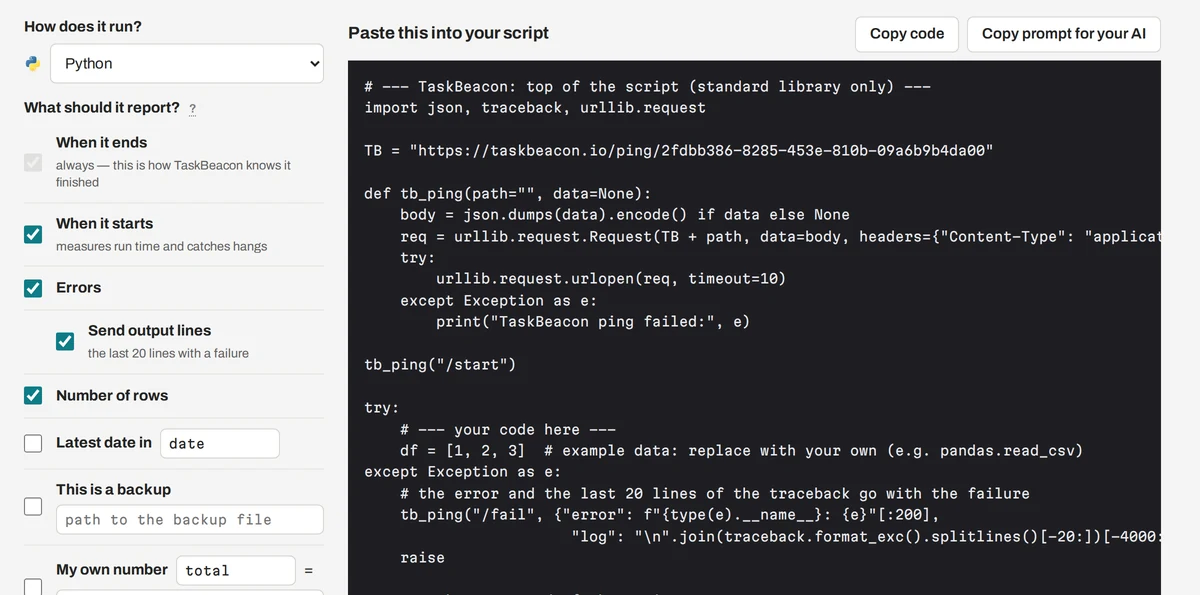
Three lines in your Python, R, Stata or PowerShell script
The real code TaskBeacon generates, with your job's own address in it. Your assistant puts it in, or you paste it yourself.
# --- TaskBeacon: top of the script (standard library only) ---
import json, traceback, urllib.request

TB = "https://taskbeacon.io/ping/your-job-id"

def tb_ping(path="", data=None):
    body = json.dumps(data).encode() if data else None
    req = urllib.request.Request(TB + path, data=body, headers={"Content-Type": "application/json"})
    try:
        urllib.request.urlopen(req, timeout=10)
    except Exception as e:
        print("TaskBeacon ping failed:", e)

tb_ping("/start")

try:
    # --- your code here ---
    df = [1, 2, 3]  # example data: replace with your own (e.g. pandas.read_csv)
except Exception as e:
    # the error and the last 20 lines of the traceback go with the failure
    tb_ping("/fail", {"error": f"{type(e).__name__}: {e}"[:200],
                       "log": "\n".join(traceback.format_exc().splitlines()[-20:])[-4000:]})
    raise

# --- TaskBeacon: end of the script ---
tb_ping("", {"rows": len(df)})# Save as C:\jobs\taskbeacon-run.ps1
# Task Scheduler > Action: Start a program
# Program: powershell.exe
# Arguments: -NoProfile -ExecutionPolicy Bypass -File C:\jobs\taskbeacon-run.ps1 "C:\path\to\program.exe" "arg1" "arg2"
# Runs the program, then reports success or failure from its exit code.
# A .ps1 script as the program is run with powershell.exe -NoProfile -ExecutionPolicy Bypass -File script.ps1
# (an execution policy set by Group Policy still wins over Bypass).
$tb = "https://taskbeacon.io/ping/your-job-id"
$program, $programArgs = $args
# a .ps1 file is not a program Windows can start on its own ("not a valid Win32 application")
if ($program -match '\.ps1$') {
$programArgs = @('-NoProfile', '-ExecutionPolicy', 'Bypass', '-File', $program) + @($programArgs | Where-Object { $null -ne $_ })
$program = 'powershell.exe'
}
function Send-TaskBeacon($path, $text) {
$send = @{ UseBasicParsing = $true; TimeoutSec = 10; Uri = ($tb + $path) }
if ($text) { $send.Method = 'Post'; $send.ContentType = 'text/plain; charset=utf-8'; $send.Body = [Text.Encoding]::UTF8.GetBytes($text) }
try { Invoke-WebRequest @send | Out-Null }
catch { Write-Host "TaskBeacon ping failed: $_" }
}
Send-TaskBeacon "/start"
# keep arguments that contain spaces together
$argLine = ($programArgs | ForEach-Object { if ($_ -eq '' -or $_ -match '[\s"]') { '"' + ($_ -replace '"', '\"') + '"' } else { $_ } }) -join ' '
# Windows PowerShell 5.1 refuses an empty -ArgumentList: pass it only when there are arguments
$run = @{ FilePath = $program; Wait = $true; PassThru = $true; NoNewWindow = $true; ErrorAction = 'Stop' }
if ($argLine) { $run.ArgumentList = $argLine }
# the program's output goes to temporary files: shown below, and its last 20 lines go with a failure
$out = [IO.Path]::GetTempFileName(); $err = [IO.Path]::GetTempFileName()
$run.RedirectStandardOutput = $out; $run.RedirectStandardError = $err
$code = 1
$note = ''
try {
$p = Start-Process @run
if ($null -ne $p.ExitCode) { $code = $p.ExitCode }
} catch { $note = "Could not start ${program}: $_"; Write-Host $note }
Get-Content -LiteralPath $out, $err -ErrorAction SilentlyContinue
$tail = ''
if ($code -ne 0) {
$lines = @(Get-Content -LiteralPath $out, $err -Tail 20 -ErrorAction SilentlyContinue) + @($note)
$tail = ($lines | Where-Object { $_ } | ForEach-Object { if ($_.Length -gt 300) { $_.Substring(0, 300) } else { $_ } }) -join "`n"
}
# the exit code goes at the end of the address: /0 = OK, any other number = failed
Send-TaskBeacon "/$code" $tail
Remove-Item -LiteralPath $out, $err -ErrorAction SilentlyContinue
exit $code # not 0 when it failed, so Task Scheduler shows the failure too# --- TaskBeacon: top of the script (base R only) ---
tb <- "https://taskbeacon.io/ping/your-job-id"
tb_log <- "" # optional: this script's log file (e.g. Rscript job.R > job.log 2>&1); its last 20 lines go with a failure
tb_ping <- function(path = "") {
old <- options(timeout = 10) # wait at most 10 seconds (R's default is 60)
on.exit(options(old))
invisible(try(suppressWarnings(readLines(paste0(tb, path), warn = FALSE)), silent = TRUE))
}
tb_num <- function(x) utils::URLencode(format(x, scientific = FALSE, digits = 15, trim = TRUE), reserved = TRUE)
tb_tail <- function() {
if (!nzchar(tb_log) || !file.exists(tb_log)) return("")
text <- paste(utils::tail(readLines(tb_log, warn = FALSE), 20), collapse = "\n")
if (nchar(text) > 700) text <- sub("^[^\n]*\n", "", substr(text, nchar(text) - 700, nchar(text)))
paste0("&log=", utils::URLencode(text, reserved = TRUE))
}
tb_ping("/start")
tryCatch({
# --- your code here ---
df <- data.frame(x = 1:3) # example data: replace with your own
}, error = function(e) {
tb_ping(paste0("/fail?error=", utils::URLencode(substr(conditionMessage(e), 1, 200), reserved = TRUE), tb_tail()))
stop(e)
})
# --- TaskBeacon: end of the script ---
tb_ping(paste0("?", "rows=", tb_num(nrow(df))))* --- TaskBeacon: top of the do-file ---
local tb "https://taskbeacon.io/ping/your-job-id"
* curl.exe is built into Windows 10 and 11; macOS and Linux have curl
local tb_curl = cond(c(os) == "Windows", "curl.exe", "curl")
local tb_log "" // optional: this do-file's log (batch mode: stata -b do job.do, or StataMP-64.exe /e do job.do on Windows, writes job.log in the current folder); its last 20 lines go with a failure
shell `tb_curl' -fsS -m 10 "`tb'/start"
capture noisily {
* --- your code here (the example data: replace with your own) ---
sysuse auto, clear
}
quietly {
local tb_rc = _rc
if `tb_rc' {
* the last 20 lines of the log (if tb_log is set) go with the failure
local tb_data ""
if `"`tb_log'"' != "" {
tempfile tb_tail
tempname tb_in tb_out
capture {
file open `tb_in' using `"`tb_log'"', read text
local tb_n 0
file read `tb_in' tb_line
while r(eof) == 0 {
local tb_n = `tb_n' + 1
local tb_k = mod(`tb_n', 20)
local tb_l`tb_k' = substr(`"`macval(tb_line)'"', 1, 300)
file read `tb_in' tb_line
}
file close `tb_in'
file open `tb_out' using `"`tb_tail'"', write text replace
forvalues tb_i = `=max(1, `tb_n' - 19)'/`tb_n' {
local tb_k = mod(`tb_i', 20)
file write `tb_out' `"`macval(tb_l`tb_k')'"' _n
}
file close `tb_out'
local tb_data `"--data-binary "@`tb_tail'" -H "Content-Type: text/plain""'
}
capture file close `tb_in'
capture file close `tb_out'
}
shell `tb_curl' -fsS -m 10 `tb_data' "`tb'/fail?rc=`tb_rc'"
exit `tb_rc'
}
}
* --- TaskBeacon: end of the do-file ---
local tb_rows = _N
shell `tb_curl' -fsS -m 10 "`tb'?rows=`tb_rows'"@echo off
REM Save as C:\jobs\taskbeacon-run.bat
REM Task Scheduler > Action: Start a program
REM Program: C:\jobs\taskbeacon-run.bat
REM Runs your job, then reports success or failure from its exit code.
set "TB=https://taskbeacon.io/ping/your-job-id"
curl.exe -fsS -m 10 "%TB%/start" >nul
REM --- your job here (a program, a script, another .bat with call): replace the path ---
REM its output goes to a temporary file: shown below, and its last 20 lines go with a failure
set "TB_LOG=%TEMP%\taskbeacon-%RANDOM%.log"
call "C:\path\to\your-job.bat" > "%TB_LOG%" 2>&1
set TB_RC=%ERRORLEVEL%
type "%TB_LOG%"
type nul > "%TB_LOG%.tail"
if not "%TB_RC%"=="0" powershell.exe -NoProfile -Command "Get-Content -LiteralPath $env:TB_LOG -Tail 20 | ForEach-Object { if ($_.Length -gt 300) { $_.Substring(0, 300) } else { $_ } }" > "%TB_LOG%.tail" 2>nul
REM the exit code goes at the end of the address: /0 = OK, any other number = failed
curl.exe -fsS -m 10 --data-binary "@%TB_LOG%.tail" -H "Content-Type: text/plain" "%TB%/%TB_RC%" >nul
del "%TB_LOG%" "%TB_LOG%.tail" 2>nul
exit /b %TB_RC%# crontab -e (this example runs every day at 06:00)
0 6 * * * curl -fsS -m 10 https://taskbeacon.io/ping/your-job-id/start >/dev/null; /path/to/your-job.sh; curl -fsS -m 10 "https://taskbeacon.io/ping/your-job-id/$?" >/dev/nullJob dashboard, alerts and run history
Real screens of TaskBeacon, with made-up jobs.
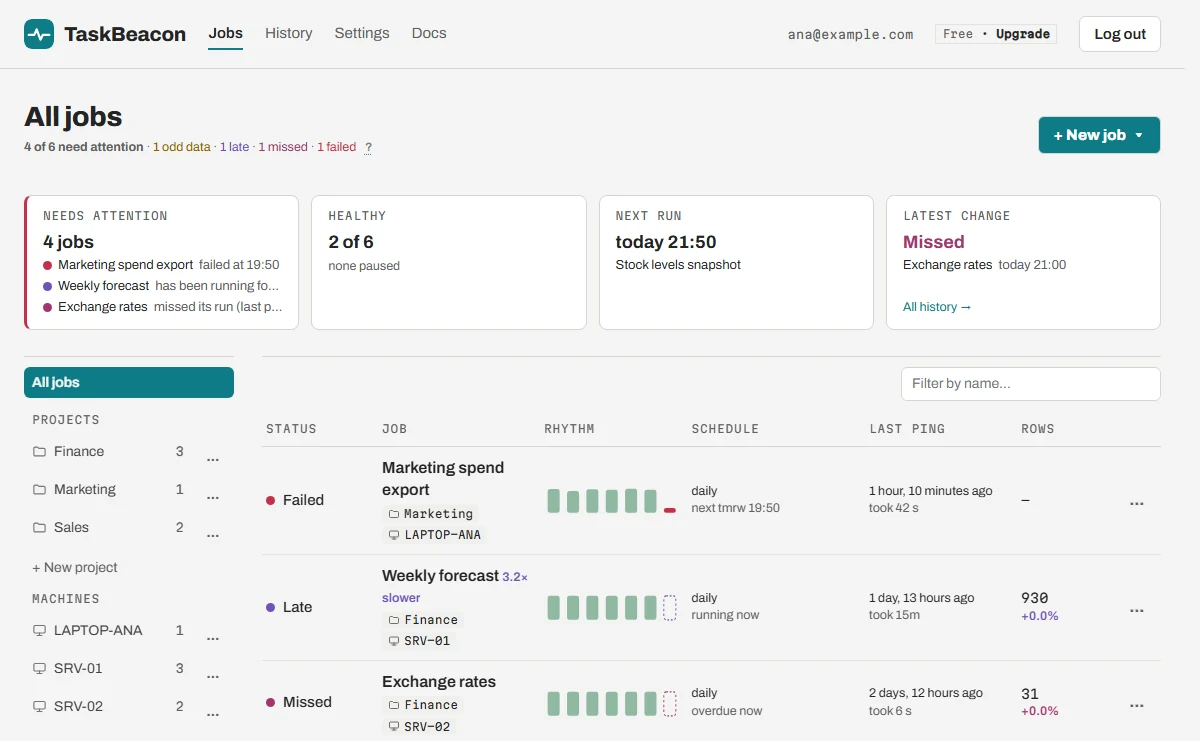
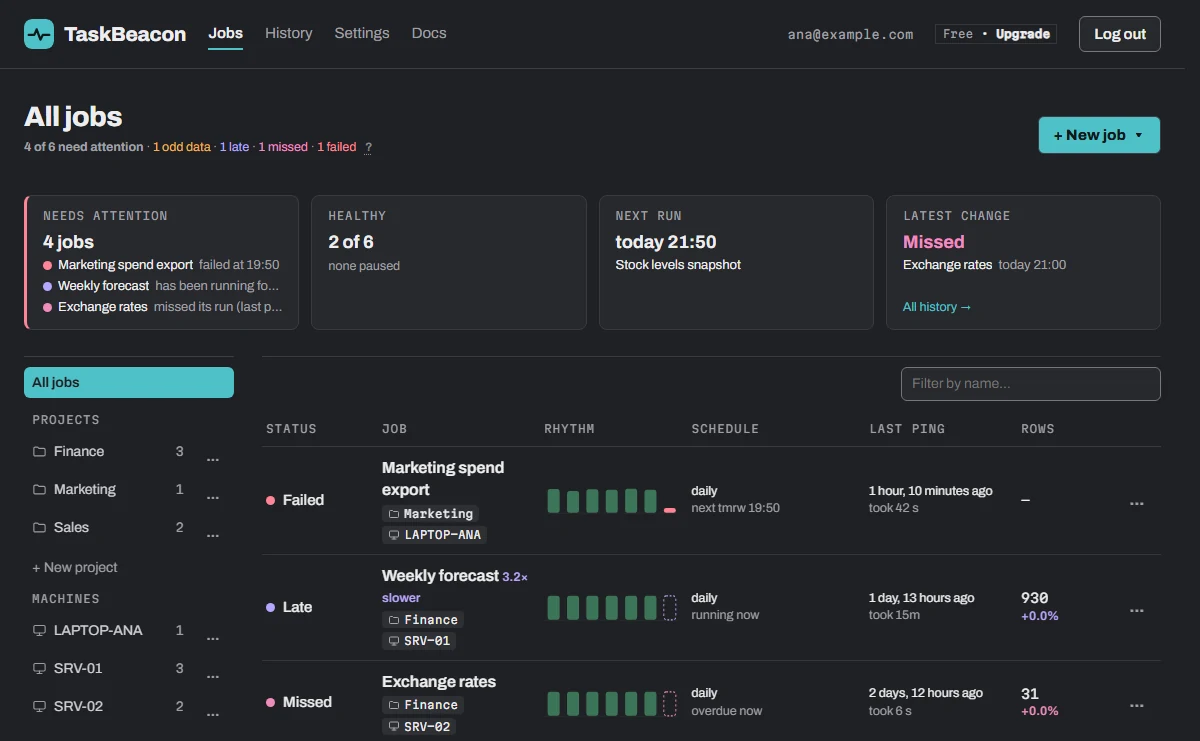
Every job on one screen
- Problems first: failed, late, missed, odd data.
- Small bars show each recent run.
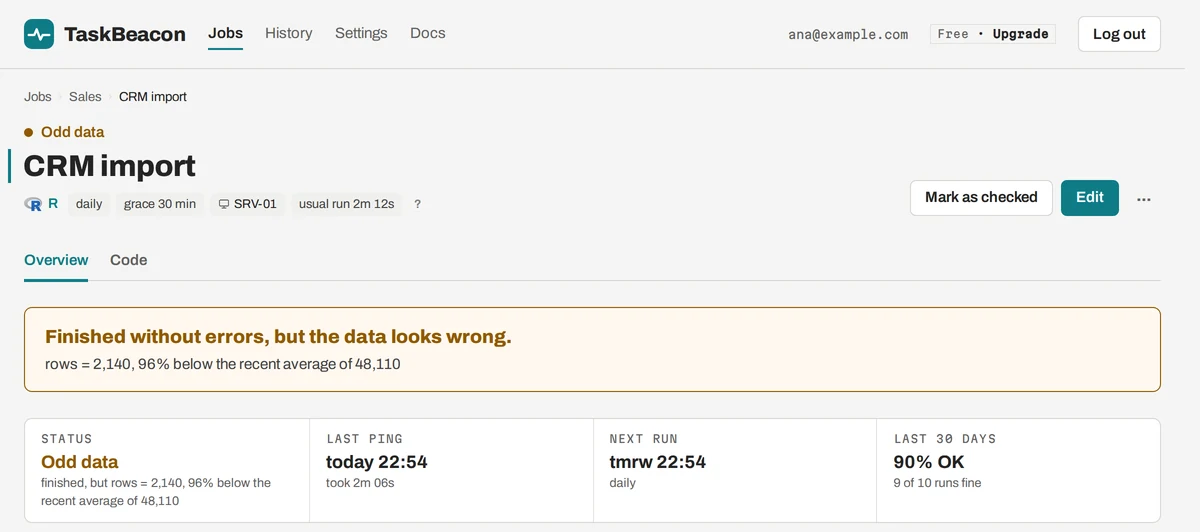
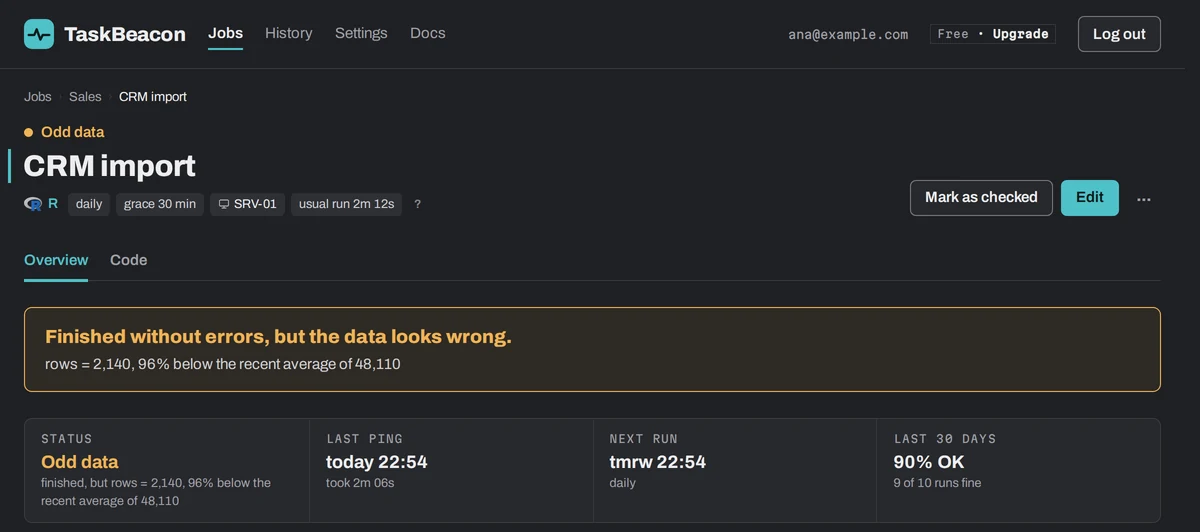
Each job explains itself
- What went wrong, in one plain sentence.
- Rows per run against the usual level.
Code you paste, not an agent you install
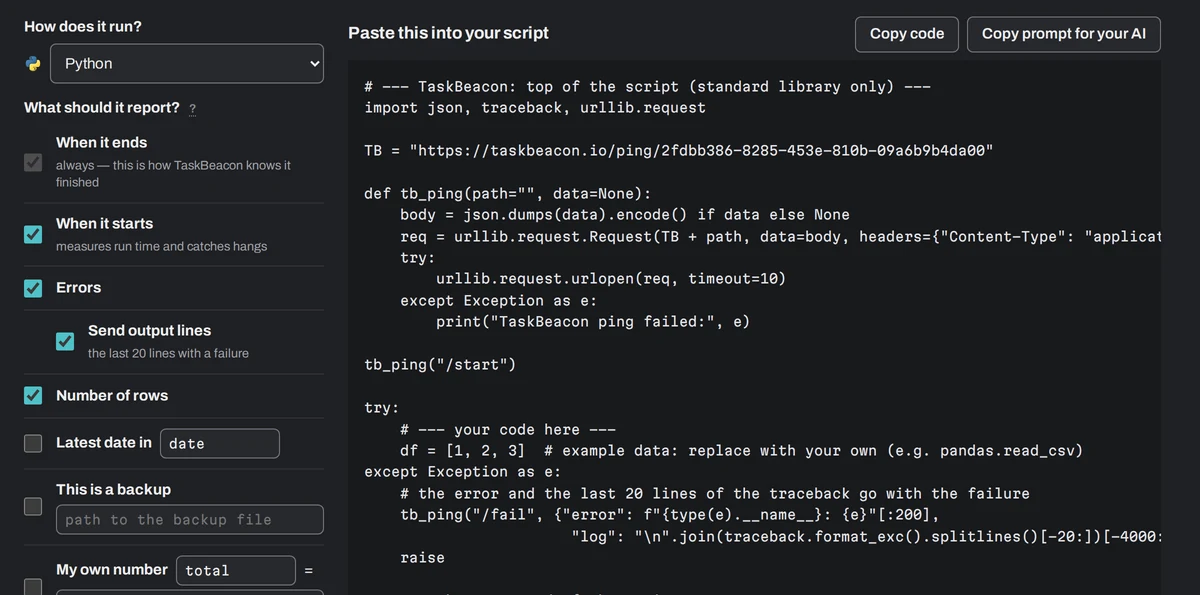
- Pick the language and tick what to report.
- Start, errors, row count, the newest date, a backup's size.
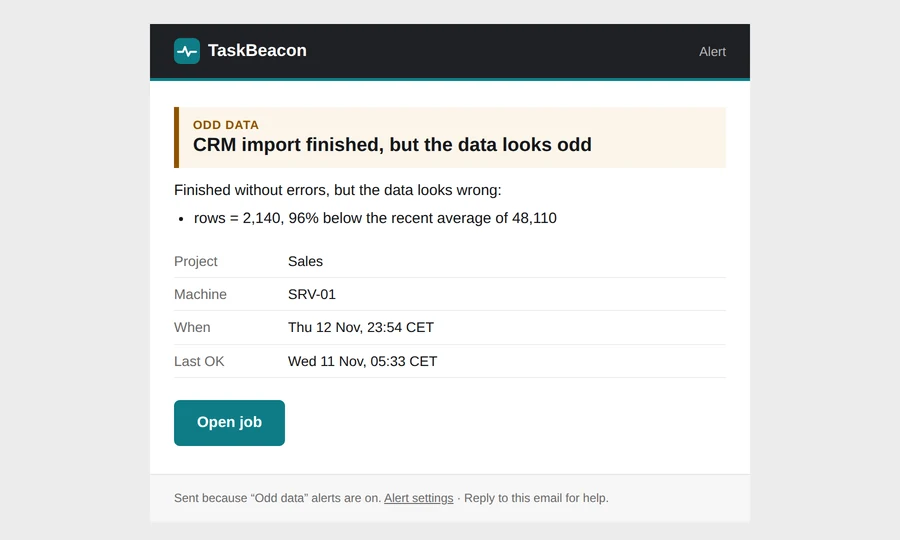
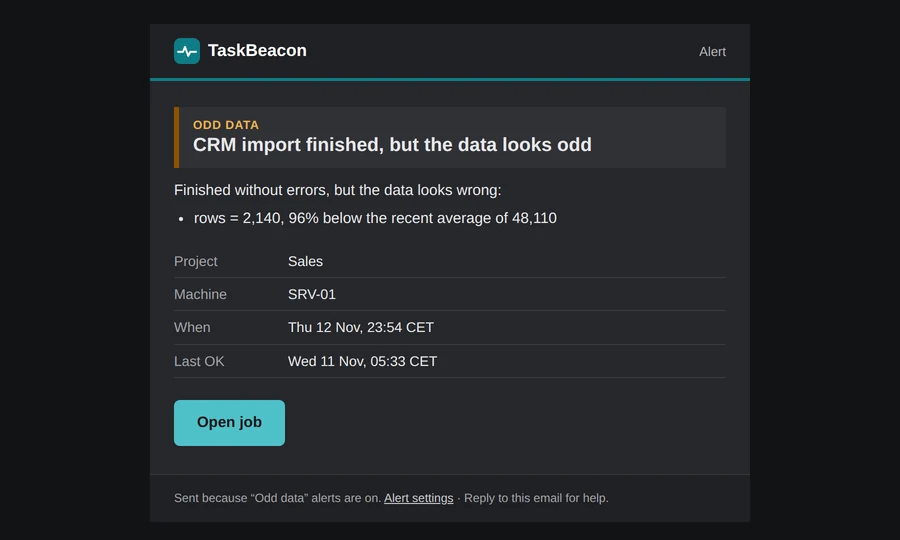
Alerts that say what to do
- The reason, the machine and the last good run.
- Your own note: who to call, what to rerun.
“It ran” doesn't mean the data is right.
Task Scheduler and cron only know the exit code. A script that loads zero rows still exits with 0.
The script reported an error, with the message.
It never ran at its planned time.
It started and is taking much longer than usual.
It ran, but the rows dropped, the file is empty or the newest date is stale.
Works with cron, Windows Task Scheduler and your tools
Anything that can call a web address. Each card opens the ready code and notes for it.
YOUR SCRIPTS AND SCHEDULERS
- Python™ Language
- PowerShell Task Scheduler
- R Language
- Stata Statistics
- SAS Statistics · new
- SPSS Statistics · new
- SQL Server Agent Scheduler · new
- Excel VBA Macro · new
- Batch (.bat) Windows script
- Node.js Language
- Linux cron Scheduler
- No-code tools Power Automate, KNIME, Zapier…
- Websites & APIs Uptime, checked by us
- SSL & domains Expiry warnings
WHERE ALERTS GO
INTEGRATIONS · NO CODE, WE READ THE RESULTS
Product names and logos belong to their owners and are shown only to say TaskBeacon works with them. R logo © 2016 The R Foundation, CC BY-SA 4.0.
Failed, missed, late and wrong-data jobs it catches
Each one explained: why it happens, and how to get an alert for it.
What the Last Run Result really means.
Stata exits with 0 after an error.
No error, no log: only a missing run.
Success that loaded nothing.
Beyond the owner's inbox.
We check it from outside; nothing to install.
How we compare
Pricing
Free to start, and every feature is open for now. A free plan stays, and you get at least 60 days' notice before anything costs money.
Free
AVAILABLE NOWFor one analyst and their own scripts.
no card needed
Start free- 20 jobs
- Script pings: start, end, exit code
- 3 website checks, every 5 min
- Row-count rules
- Ask Claude or ChatGPT what failed (MCP)
- Email and Slack alerts
- Daily or weekly report
- 30 days of history
Pro
For one analyst with many scheduled jobs.
every Pro feature is free for now
Start free, then upgrade- 100 jobs
- Everything in Free
- Website checks every minute, SSL and domain alerts
- Integrations: Power BI, SharePoint, dbt, Fivetran, Azure Data Factory
- Keyword, stale-date and custom-number rules
- Teams, Discord, Google Chat, ntfy, webhook alerts
- Hourly reminders and a monthly report
- 1 status page for your manager
- 12 months of history
Team
For a team that shares projects.
every Team feature is free for now
Start free, then upgrade- 500 jobs
- Everything in Pro
- Shared projects: any number of colleagues, with roles
- Alerts routed per project
- Change log and "Send me alerts" for members
- API
- Unlimited status pages, without our branding
- 24 months of history
- Priority support, same business day
Support TaskBeacon — subscribe now. Every feature is free for now; a subscription raises your job limit to the plan's and keeps it when paid plans start.
Create a free account first, then upgrade from Pricing or Settings → Plan & billing.
All features, and our promise to early users · Prices exclude VAT.
Questions before the first job
Does my data leave my server?
No. Only the ping leaves: its status (start, finish, fail), the timing, the numbers you add (such as a row count) and, on a failure, the last 20 lines of output (or the error message). We also see the sending IP address and user agent. Your data, files and database stay where they are.
What do I need to install?
Nothing. The script makes one HTTP call at the start and one at the end, with curl, PowerShell or the language's own library.
What if IT blocks outbound HTTPS?
The machine needs to reach one address over HTTPS. Ask IT to allow that one domain; nothing has to reach in.