Getting started
TaskBeacon watches scripts that run on a schedule. Your script calls a web address (a ping) when it starts and when it ends. If a ping doesn't arrive in time, or says the script failed, or the numbers it sends look wrong, you get an alert.
Three kinds of jobs
- Script job: your script, task or scheduler pings TaskBeacon when it starts and ends. Set one up below.
- Website or API check: we request an address every few minutes and alert when it is down or slow. Website and API checks.
- Integration: we read run results from Power BI, SharePoint / OneDrive, dbt Cloud, Fivetran or Azure Data Factory. Integrations.
Your first job in two minutes
- Create an account (free to start) and open + New job.
- Give it a name and say when it runs (for example daily at 06:00). Under More you can set the machine it runs on and a project. Click Next: get the code.
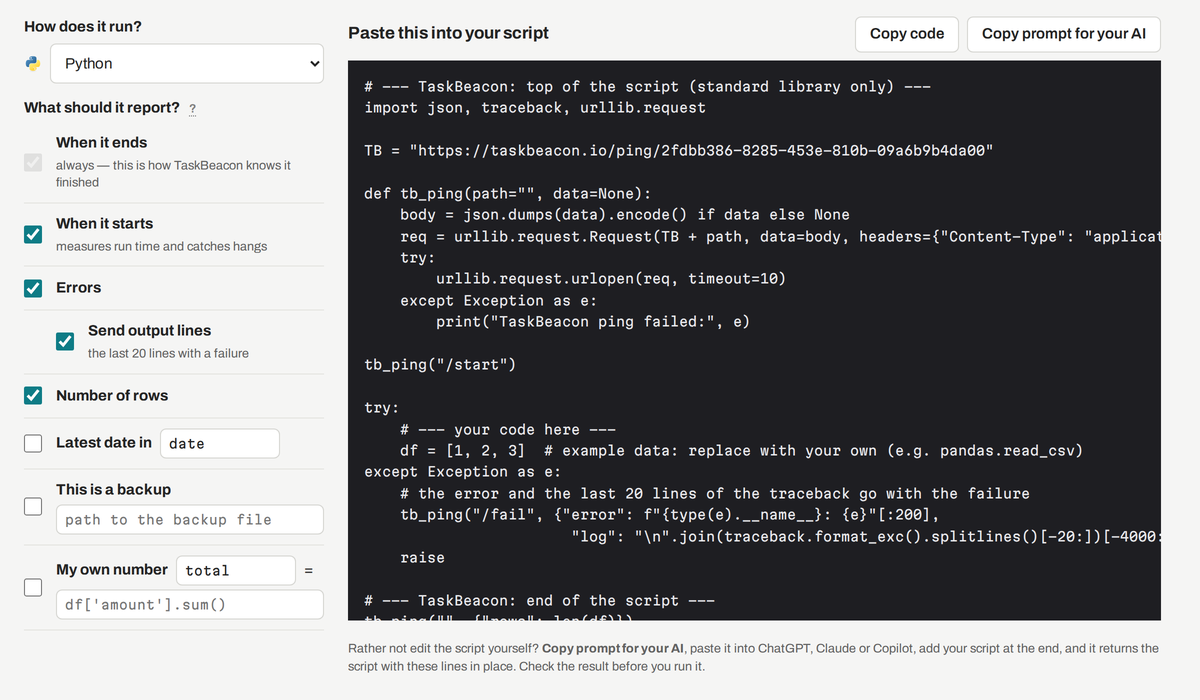
- On the Code tab pick the language (Python is first). It shows the lines for your script, with your own ping address already in them. When it ends is always in the code (that ping is how TaskBeacon knows the job ran); When it starts is on by default and measures run time and catches runs that hang. Click Copy code. Rather have an AI assistant do it? Copy prompt for your AI copies a ready message with these lines; paste it into ChatGPT, Claude or Copilot, add your script, and check what it returns. For jobs that call an AI model, see monitoring AI jobs and agents.
- Paste them into your script and run it once. The page shows It works. when the first ping arrives. Click Done.
What happens next
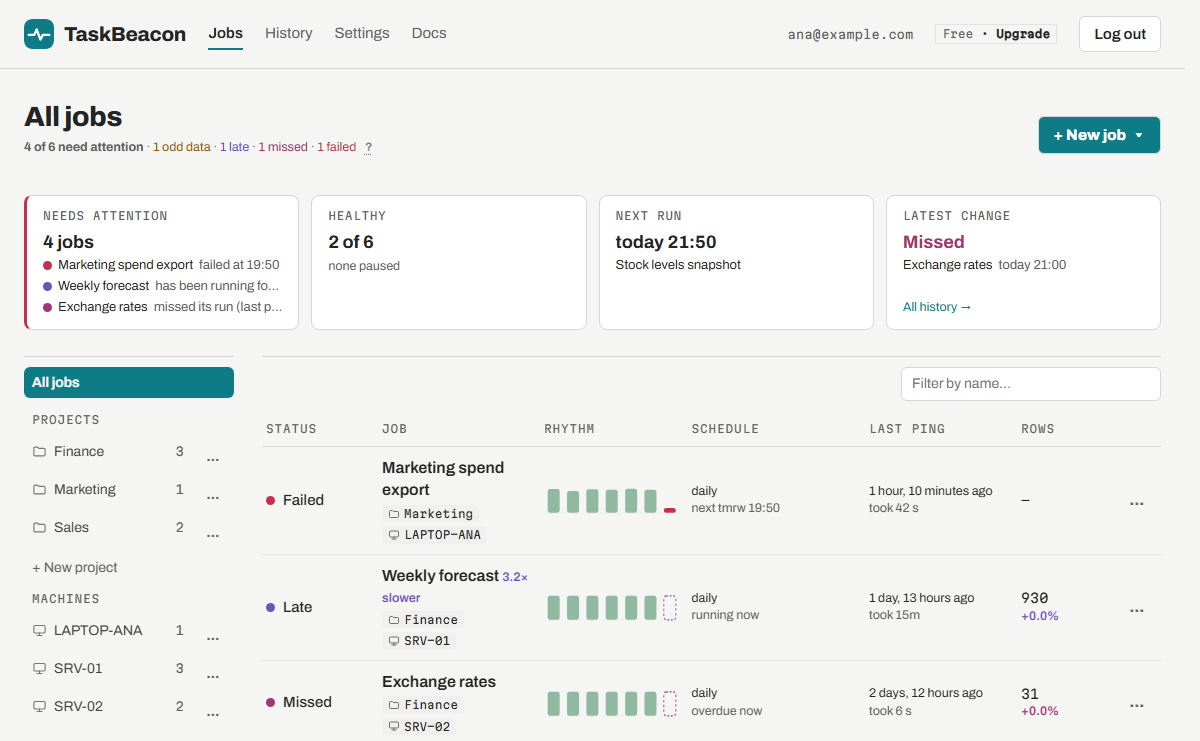
From now on TaskBeacon expects a ping at each planned time. The Jobs page shows every job with its status, last ping and next planned run; problems are listed first.
The ping address
Every job has its own address, like https://taskbeacon.io/ping/<id>. Add /start when the script starts and
/fail when it fails (or the exit code at the end: /0, /1). Anything after ? is a number to check, for example ?rows=15234.
A GET or a POST both work; scripts can also send numbers as a JSON body.
Keep the address private: anyone who has it can report runs for that job. If it leaks, use Regenerate ping URL on the job's Edit page.
Many jobs at once
On the Jobs page, the arrow next to + New job opens Import jobs: paste one line per job (name, schedule, machine, e.g.
Sales report, daily 06:30, SRV-01 or Stock import, every 2 hours) or upload a CSV file with the same columns, check the preview and create them.
To copy one job with its settings and rules, use Duplicate in the job's … menu.
Use cases: Heartbeat monitoring (a dead man's switch) for scheduled scripts. More questions: FAQ.