Monitor cron jobs and scheduled scripts from Claude or ChatGPT
Set up monitoring by asking Claude or ChatGPT. Connect TaskBeacon to Claude or ChatGPT and say “Help me get started.” A few clicks, and your scheduled scripts are watched. From then on TaskBeacon does the rest: an email the moment a job fails, doesn't run or sends odd data, another when it's back to OK, and a daily or weekly summary of everything.
Free to start · no credit card · the app asks you before it creates or changes anything
02:14. The nightly import fails. Nobody notices until the boss asks.
- At 02:14 the nightly sales import fails with a database timeout, and no one is told.
- In Claude you write "Help me get started with TaskBeacon." and name the script and its schedule. It creates the job and gives the lines for the start and end of the script.
- Or in Claude Code you write "Scan my scheduled tasks and recommend what to monitor." It reads the Task Scheduler, and after you say yes it sets up three jobs in TaskBeacon and adds the lines to the three scripts.
- The job appears in the TaskBeacon job list by itself, and turns OK after its first run.
- When the script fails you get an email right away with the error and the last lines of output, and another when it is back to OK.
- Next morning you ask ChatGPT "What failed last night?" and it answers from TaskBeacon.
- You ask Claude to move the CRM import to 06:00 and pause the backup; it asks first, then changes both.
- You can do the same by hand in the app, or by writing to the assistant. After that it runs by itself.
1. Connect the TaskBeacon MCP server (one minute)
You sign in to TaskBeacon (or create an account with Google) and choose whether the app may only read or also set up jobs.
Claude
- Open TaskBeacon in Claude's connector directory and connect it.
- Sign in to TaskBeacon and click Connect.
- In a chat: + → Connectors → turn TaskBeacon on.
Or add it yourself: Customize → Connectors → + → Add custom connector, with the TaskBeacon address.
ChatGPT
- On chatgpt.com open Plugins → + → Add custom MCP server.
- Name it TaskBeacon, paste the TaskBeacon address, choose OAuth and create it.
- Sign in to TaskBeacon and click Connect. In a chat, type @ and pick TaskBeacon.
https://taskbeacon.io/mcpAnother app that connects to MCP servers (Cursor, VS Code ...)? Use the same address. Step by step, with sources: Docs → AI assistants.
2. Write one sentence to set up monitoring
Copy it into the chat. The assistant explains what it will do and asks before it creates anything.
It explains what it will do, finds (or asks for) your scheduled scripts and sets up the first one.
In an app that can read your files (Claude Desktop, Claude Code): it looks through Task Scheduler or cron and suggests the jobs worth watching.
Paste a script: it creates the job with its schedule and puts the lines into your code.
3. The jobs appear in TaskBeacon, with alerts on
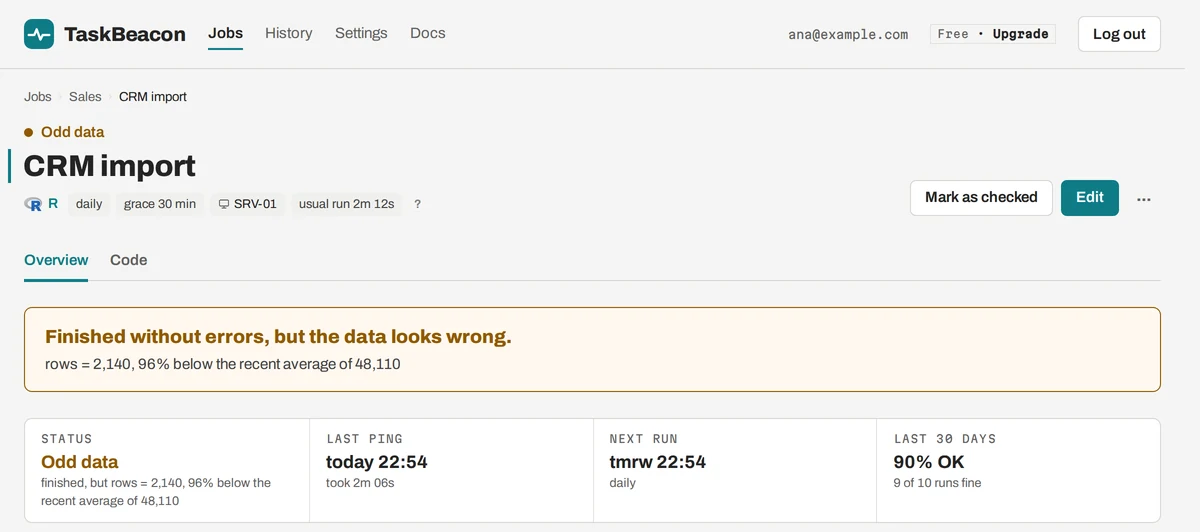
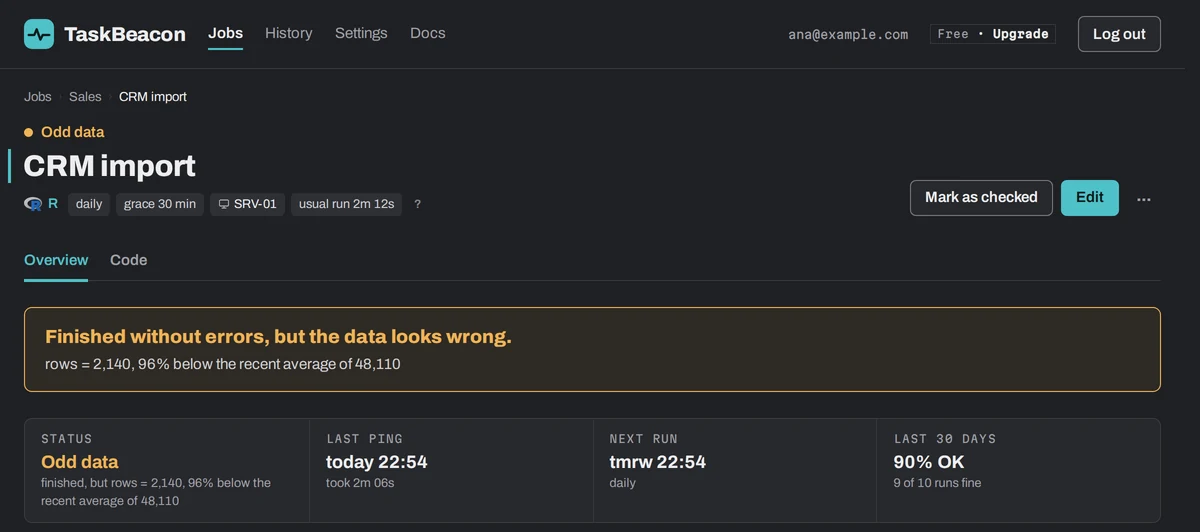
Every job appears in TaskBeacon by itself
- Whatever the assistant sets up is in your account right away, with its schedule.
- No form to fill in. You can still change anything on the site.
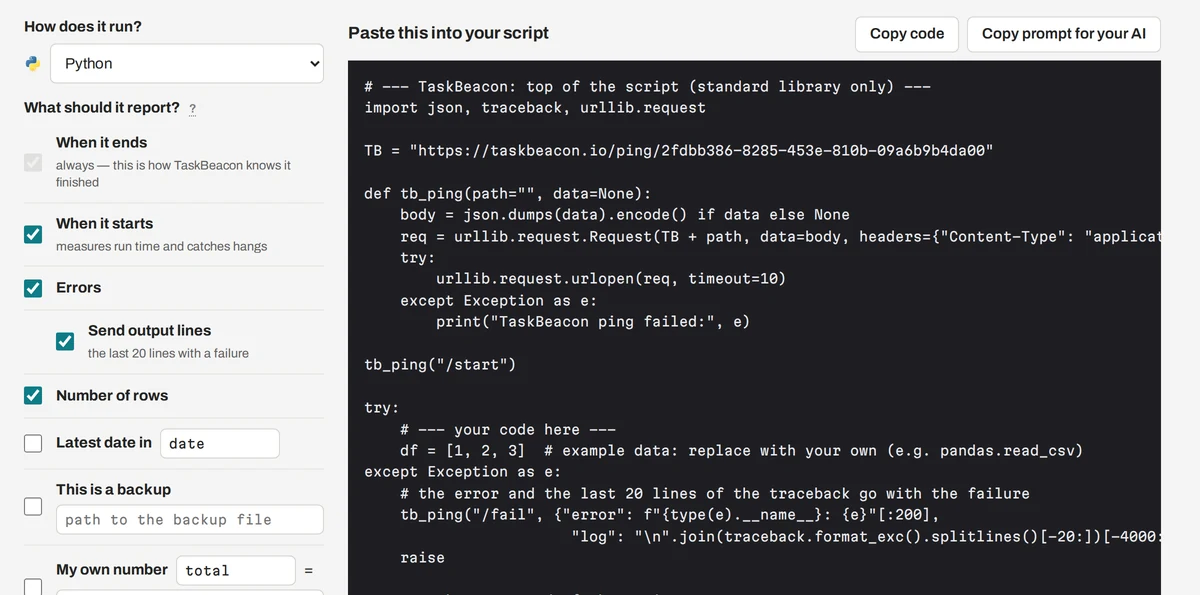
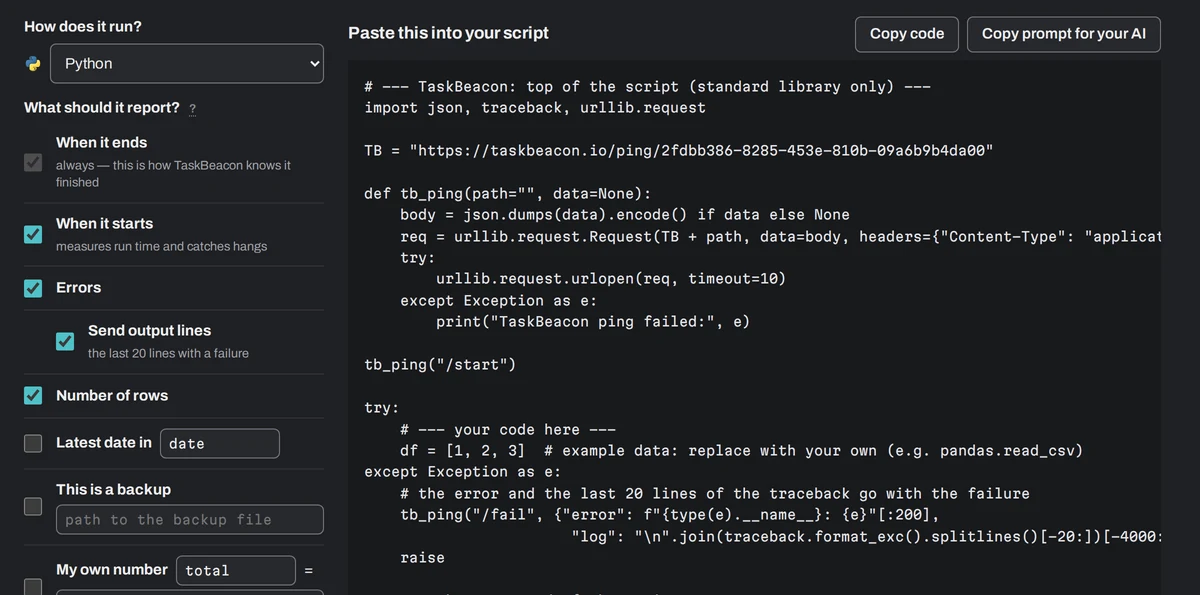
A few lines go into each script
- One ping at the start, one at the end, one on an error. Your own code stays as it is.
- Run the script once; the assistant checks that the first report arrived.
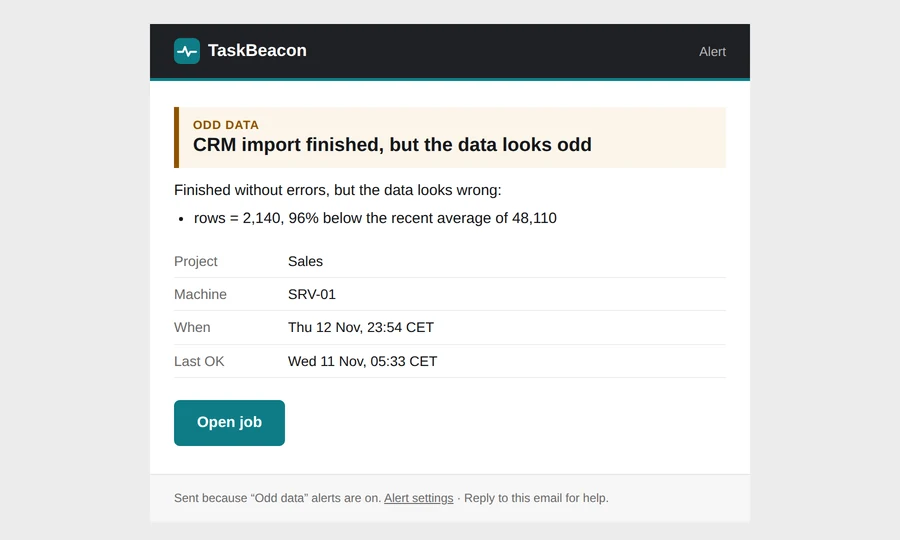
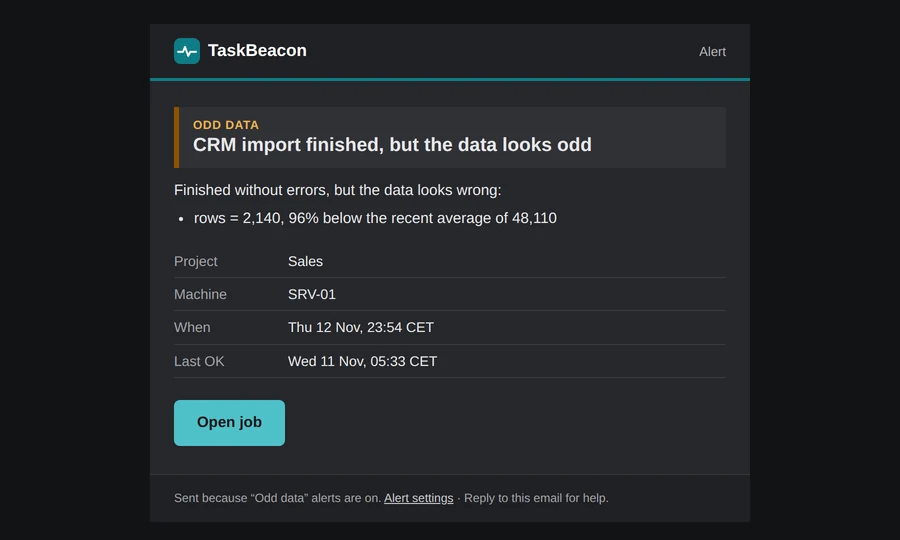
An email when something goes wrong
- Failed, didn't run, ran late, or 0 rows instead of the usual thousands.
- With the error and the last lines of output. Slack, Teams and others too.
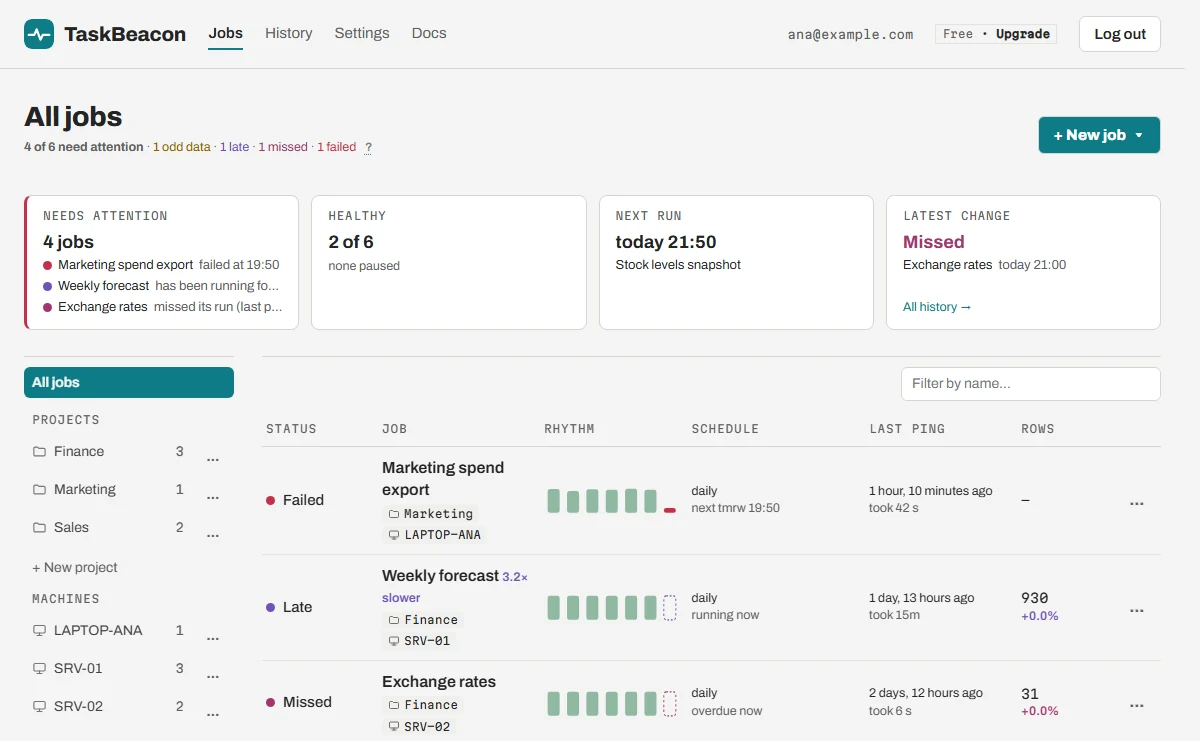
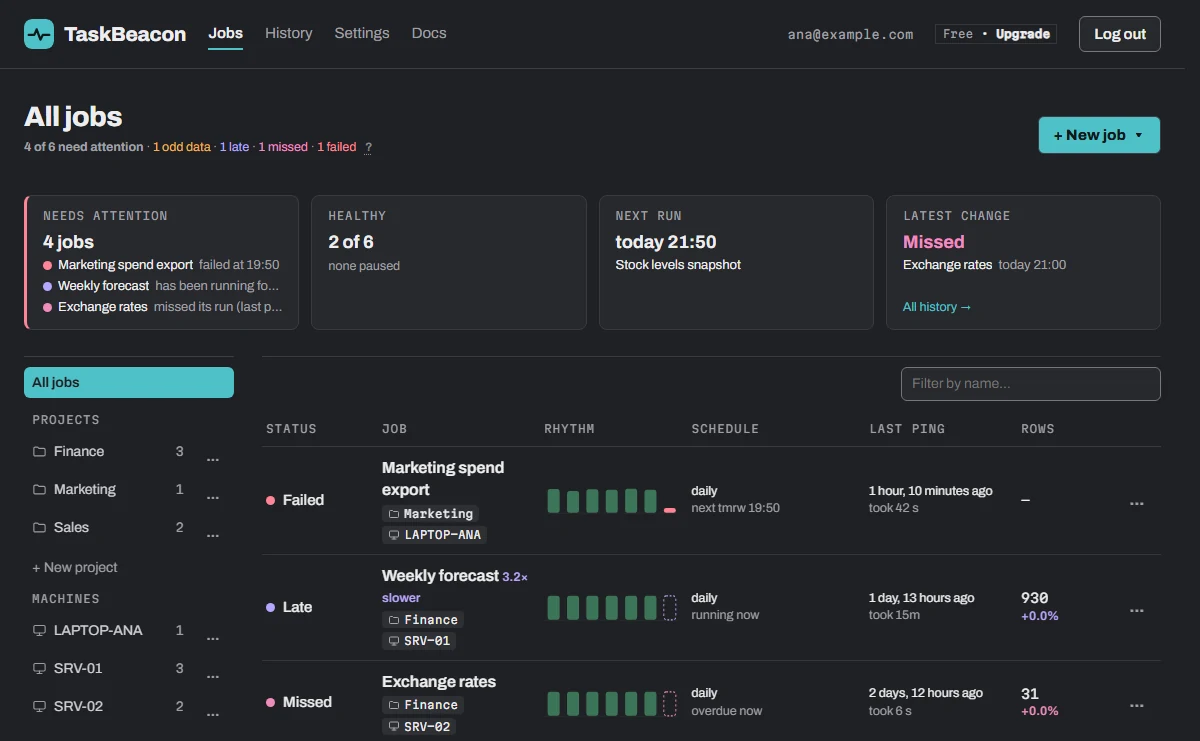
The history is in the chat and in the app
- Ask the assistant, or open TaskBeacon: every job with its status and each run.
- Problems first; the small bars are the recent runs.
4. After setup, alerts and reports run by themselves
Nothing to check by hand. You hear from TaskBeacon only when it matters, and once a day or week if you like.
Failed, missed, late or odd data (0 rows), with the error and the last lines of output.
An email when the job recovers, so you know it's fixed.
While a job stays broken, a reminder every few hours, if you want one.
Every job and how it ran, at the time you choose; a monthly report on Pro.
One alert for the machine instead of one per job.
Email, Slack, Teams, Discord, Google Chat, ntfy or a webhook; at once or once a day.
5. Ask what failed, what is late or what was missed
A few things people ask once their jobs are set up.
Failed, missed, late and odd-data jobs, with the error and why.
Whether the first report arrived, and what to check if not.
Compares the latest run with earlier ones.
Failures, missed and slower runs per job, worst first.
Changes the schedule (it asks first).
Missed runs by machine, and which may need a rerun.
Questions about the MCP connector
What can the assistant see?
Only what you see on TaskBeacon: your jobs, their runs and the error text your scripts send. Never your data, files or databases; TaskBeacon doesn't have them. Error messages are passed on as data, not as instructions.
Can it change or delete my jobs?
It can create jobs, change a schedule and pause or resume a job, and the app asks you first. It can't delete anything. Every change it makes shows in the job's change log as made with that app.
Can it find my scripts by itself?
Only in an app that can read your files or run commands, such as Claude Desktop or Claude Code. In a normal chat it asks you to paste the script or say what runs and when.
Which plan do I need?
For now every feature is open to everyone, including setting up jobs from a chat. Later, reading stays on every plan and setting up jobs from a chat is on Pro and Team. See Pricing.
How do I disconnect it?
In Settings → AI assistants. The app loses access at once.
I'd rather not use AI.
Everything works without it: sign up, click + New job and the Code tab writes the lines for your script.